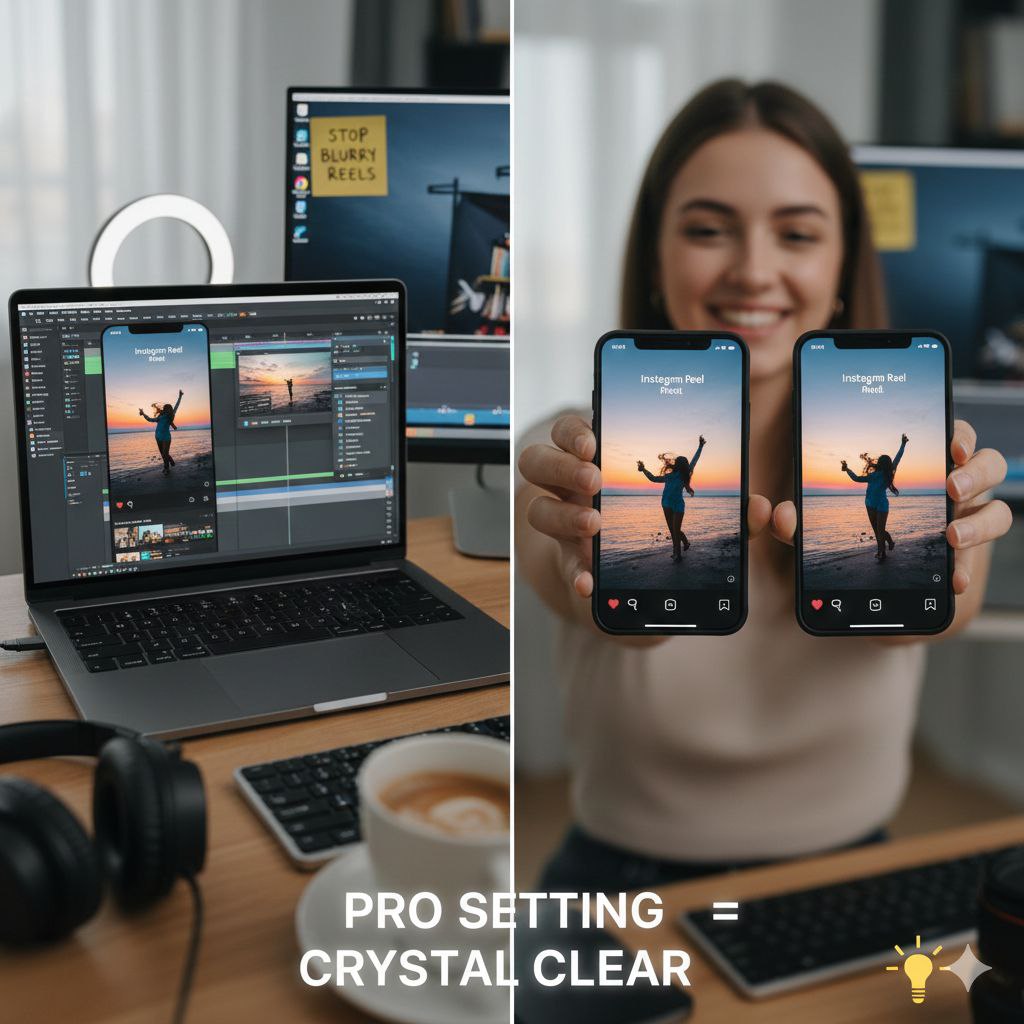

Stop Uploading Blurry Reels: Pro Settings for Crystal Clear Instagram Videos
Have you ever spent hours editing a masterpiece, only to have Instagram turn it into a pixelated mess after uploading? You aren’t alone. Instagram’s compression algorithm is notorious, but with the right Pro Settings, you can force the platform to maintain your quality.
1. The “Hidden” In-App Setting
Before looking at bitrates, check the most important toggle within the Instagram app itself. By default, it’s often turned off to save data.
- How to fix it: Go to Settings and Privacy > Data Usage and Media Quality > Toggle on “Upload at Highest Quality.”
2. Technical Specs: The 1080p Rule
A common mistake is uploading in 4K. While it sounds better, Instagram often applies heavier compression to 4K files, leading to a “softer” look than native 1080p.
- Resolution: 1080 x 1920 pixels (9:16 aspect ratio).
- Frame Rate: 30fps is the sweet spot. 60fps is great for slow-motion, but 30fps is generally more stable for the algorithm.
- Codec: H.264 (The industry standard for Instagram).
3. Pro Export Settings Table
Use these specific numbers in your editing software for the best results:
| Platform | Resolution | Bitrate (Target) | Frame Rate |
|---|---|---|---|
| CapCut | 1080p | Recommended (15-20 Mbps) | 30fps |
| Premiere Pro | 1080p | 15 Mbps (VBR, 1-pass) | 30fps |
Pro Tip: In CapCut, turn off “Smart HDR” unless you’ve color-graded specifically for it. Standard SDR often looks more consistent across different phone screens.
4. Lighting: The Secret Ingredient
No setting can save a video shot in low light. When a sensor struggles with darkness, it creates “noise.” Instagram’s algorithm sees this noise as data and tries to compress it, resulting in a blurry upload.
The Fix: Always shoot with plenty of natural light or a dedicated key light. The cleaner your original footage, the better it survives the upload.
5. Avoid In-App Editing
Using Instagram’s internal filters and text can sometimes trigger a re-render of your video, reducing quality. Complete your edit in a third-party app (CapCut/Premiere) and upload the final file directly.
Conclusion
Maintaining high quality on Instagram isn’t magic—it’s about matching your output to the platform’s requirements. By using 1080p resolution, a 15 Mbps bitrate, and enabling “Highest Quality Uploads,” your Reels will stay sharp and professional in 2025.
Recommended Read: While mastering high-quality content is essential, the future of work is also changing fast. Check out our deep dive:
Will AI Replace My Job in 2025? The Truth About Automation.